Types of Computers used to Download Microsoft Access
Explore computers types available to use for your Access DB.
MICROSOFT ACCESS DATABASES
iBeauty Consulting Group
1/12/20262 min read
Types of computers used to download databases
You can load and run Microsoft Access databases primarily on Windows PCs, but with the help of third‑party software and ODBC drivers, you can also use them on macOS and Linux systems. Access Runtime allows distribution to machines without Office installed, and third‑party tools extend compatibility to analytics platforms, programming languages, and BI software.
💻 Supported Computer Types for Microsoft Access Databases
1. Windows PCs (Native Support)
• Primary Platform: Microsoft Access is designed for Windows x86 and x64 systems, including desktops, laptops, and Windows Terminal Server environments A B.
• System Requirements: Modern versions (Access 2019, 2021, and Microsoft 365 Access) require Windows 10 or later with at least 4 GB RAM and 4 GB disk space.
Access Runtime: Enables running Access applications on PCs without a full Office suite.
2. macOS Computers (via Third‑Party Software)
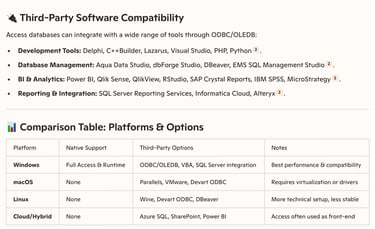
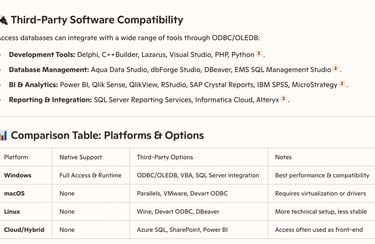
• ODBC Drivers: Devart’s ODBC driver supports macOS x64 and ARM (Apple Silicon M1/M2).
• Virtualization/Emulation: Tools like Parallels Desktop or VMware Fusion allow running Windows and Access directly on macOS.
• Alternatives: FileMaker and other database tools can import/export Access data via ODBC.
3. Linux Systems (via Third‑Party Software)
• ODBC Drivers: Access databases can be connected on Linux x86 and x64 using Devart ODBC.
• Wine/PlayOnLinux: Some users run Access through Windows emulation layers, though stability varies.
Database Management Tools: Linux‑based tools like DBeaver or RazorSQL can connect to Access databases via ODBC.
🔌 Third‑Party Software Compatibility
Access databases can integrate with a wide range of tools through ODBC/OLEDB:
• Development Tools: Delphi, C++Builder, Lazarus, Visual Studio, PHP, Python B.• Database Management: Aqua Data Studio, dbForge Studio, DBeaver, EMS SQL Management Studio B.
• BI & Analytics: Power BI, Qlik Sense, QlikView, RStudio, SAP Crystal Reports, IBM SPSS, MicroStrategy.
• Reporting & Integration: SQL Server Reporting Services, Informatica Cloud, Alteryx.
⚠️ Key Considerations
• Performance: Native Windows installations are most stable; macOS/Linux rely on third‑party layers.
• File Compatibility: Older Access `.mdb` files may need conversion to newer `.accdb` formats.
• Security: When using third‑party drivers, ensure encryption and secure connections are enabled.
• Scalability: For larger datasets, consider pairing Access with SQL Server or another enterprise DBMS.
In Summary: You can load your Access database directly on Windows PCs, and with third‑party ODBC drivers or virtualization software, you can also use it on macOS and Linux. Third‑party tools expand Access’s reach into analytics, reporting, and programming environments, making it versatile beyond its native Windows ecosystem.
References (4)
1. Ready to Use Microsoft Access? Check These Essential System .... https://moldstud.com/articles/p-get-prepared-to-use-microsoft-access-by-reviewing-these-key-system-requirements
2.Compatibility - ODBC Driver for Microsoft Access - Devart. https://docs.devart.com/odbc/access/compatibility.htm
3.Download and install Microsoft 365 Access Runtime. https://support.microsoft.com/en-us/office/download-and-install-microsoft-365-access-runtime-185c5a32-8ba9-491e-ac76-91cbe3ea09c9
4. Access Database File Compatibility Table | DEVelopers HUT. https://www.devhut.net/access-database-file-compatibility-table/